Anyone planning a build eventually arrives at this question: stay at 1080p and save, or move up to 1440p and pay more for both the monitor and a card that can handle the resolution. The short answer is that there’s no single answer, because the decision depends on what you do with the computer, not just on what produces more frames.
The difference between the two isn’t just sharpness. It changes which card you need, how much video memory is required, and where it’s worth putting every shekel in the build. Here’s the calculation, without the myths.
What really changes between 1080p and 1440p
- The difference is 78 percent more pixels per frame
A 1080p monitor displays 1920 by 1080, which is about 2.07 million pixels. A 1440p monitor displays 2560 by 1440, about 3.69 million. The card has to draw almost twice as many points per frame. That’s the whole story of performance, and from that comes everything else. - Sharpness is measured in pixel density, not monitor size
At 24 inches 1080p, the density is about 92 pixels per inch. At 27 inches 1440p, it’s about 109. Whereas 27 inches 1080p drops to about 82, so it looks relatively blurry. A larger monitor with the same resolution doesn’t add sharpness; it spreads it out. - You notice it first in everything that isn’t gaming
Text in documents, the Windows interface, icons, margins. On a 1440p monitor, more content fits across the width, there’s less scrolling, and small Hebrew text remains readable.That’s the difference you feel even on a workday, not just on a gaming evening.
How many frames it actually costs
- A reasonable expectation is a drop of 20 to 35 percent
Same card, same settings, higher resolution: frames drop. The exact number varies from game to game, depending on the CPU and settings, so this is an estimate for planning, not a promise. - A card that delivers 120 frames at 1080p will give roughly 80 to 95 at 1440p
This is the way to calculate a forecast before buying. If 80 frames are enough for you, the card is suitable. If you need 144, this card is no longer suitable, even if it’s excellent at 1080p. - At 1440p, the CPU works less hard
When the card draws more pixels, it becomes the bottleneck, and the CPU waits more. The budget implication is simple: in a 1440p build, you can save on the CPU and put the money into the card.
Under construction for 1080p at 240 Hz, the situation is reversed.
Where the money is more noticeable: monitor or graphics card
- The monitor is the only part you look at every minute
You replace a graphics card every two to four years, but a good monitor lasts through three systems. Therefore, upgrading the monitor is noticeable with every use, and the next graphics card upgrade will feel better on a good monitor. - An incorrect combination wastes money in both directions
A very powerful card on a 24-inch 1080p 60 Hz monitor is money thrown away. A 1440p monitor with a card that can’t sustain 80 frames creates the feeling that the computer is weak, even though the problem is the monitor. The match between the two is more important than any single component. - Our rule of thumb for budget planning
In a new build for 1440p, the monitor should be a real part of the budget, not an afterthought.This is an opinion, not a law: if the budget doesn’t include a monitor at the level of the card, it’s better to drop one card tier and buy a good monitor.
Graphics card memory: what changes at high resolution

- 8GB becomes a bottleneck at 1440p in new games
High-quality textures and larger frames consume more graphics card memory. When memory runs out, the game lowers texture quality or starts stuttering. At 1080p, the same card manages better. - 12GB is a comfortable starting point, 16GB gives peace of mind
This is our assessment based on what we see in the lab, not manufacturer specs. If you’re buying a card to keep for three years at 1440p, 16GB is better. If you replace every two years, 12GB can suffice. - Upscaling changes the calculation
At 1440p in Quality mode, the game renders at roughly 1707×960 and upscales, quite close to native, and recovers some frames. At 1080p, Quality mode starts at about 1280×720, and the image looks softer.Those planning to use upscaling regularly benefit from a higher-resolution monitor.
Which card suits which monitor
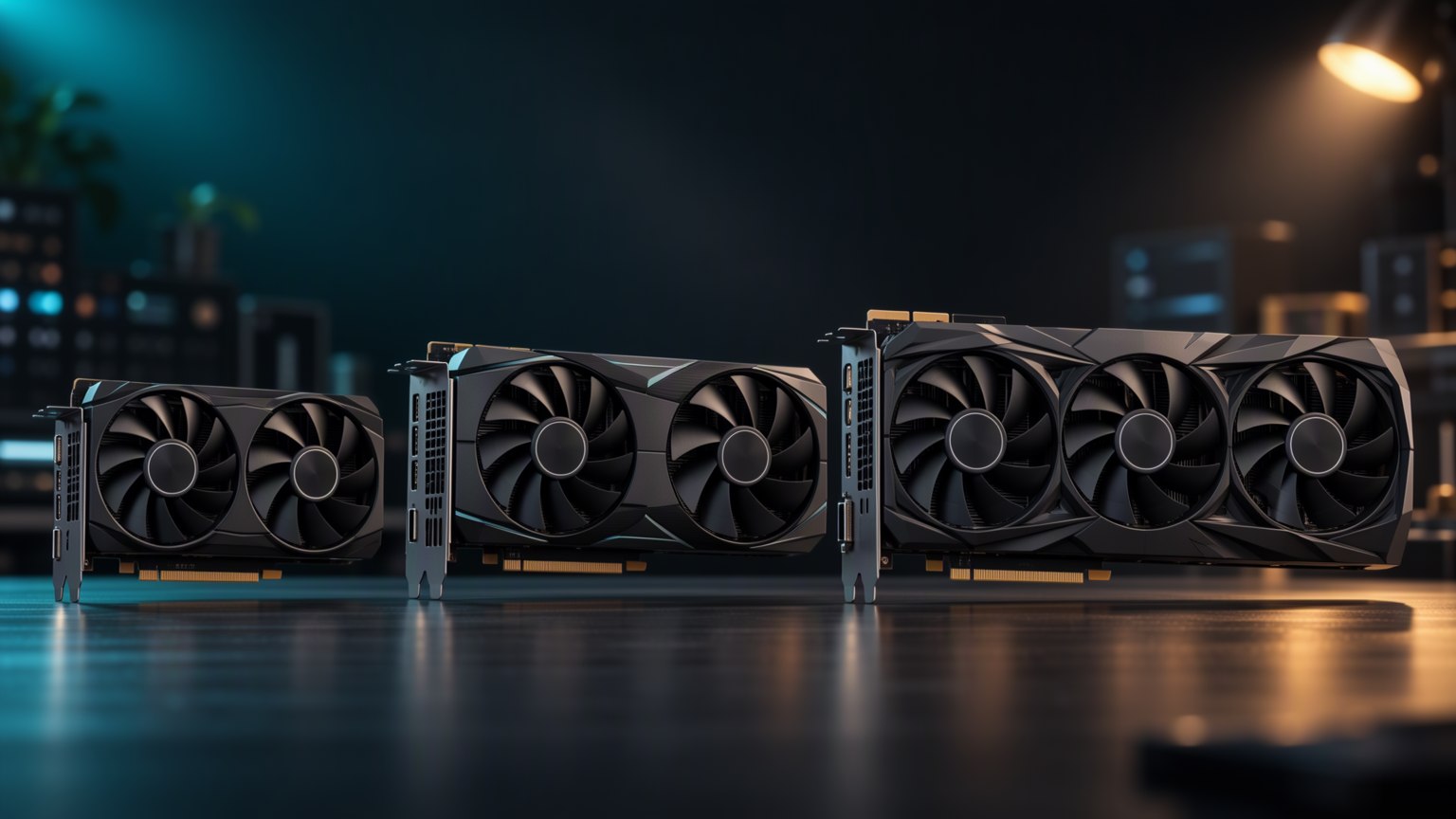
- 1080p at 144 to 240 Hz: Mid-range cards are enough
That’s where you can save, as long as the CPU isn’t a bottleneck. It’s also where a card that’s too powerful adds almost nothing, because the screen doesn’t show the frames. - 1440p at 144 to 180 Hz: The high-end, not the highest
This is the range where you really need a card with 12 to 16GB that holds 80 frames and above in the games you play, - 1440p at 240 Hz or 4K: The top tier
And if the goal is competitive gaming, sometimes 1080p at 240 Hz is cheaper and feels smoother than 1440p at 144.
not in every game, and not at every setting.
Competitive gamers: Resolution vs. refresh rate
- In many shooter games, people play on low settings on purpose
Not because the PC is weak, but to see movement clearly and keep frames stable. There, 1440p doesn’t give an advantage, and sometimes it actually gets in the way. - Refresh rate and panel, not just a number
144 Hz on a good panel feels smoother than 165 Hz on a slow-response panel. So it’s worth reading about response time and motion quality, not just the Hz in the ad. - If the goal is 240 Hz, the CPU and memory determine it
At 1080p, the card often waits for the CPU.Swapping the card alone won’t get you to stable 240 frames if the CPU can’t keep up.
Not just gaming: Work, editing, and what you see all day
- A workday on 1440p is a real upgrade
More rows in a spreadsheet, more windows, less switching between tabs, and small text that stays sharp. For someone who spends hours in front of the computer, that’s worth more than an extra 15 frames in a game. - In video editing, the screen is a work tool
A long timeline, preview, and panels simultaneously require space. On a single 1080p screen, you turn some off or shrink them. Color coverage is also important, so it’s worth checking the panel specs, not just the resolution. - In a local AI workstation, the screen doesn’t add VRAM
It adds comfort. If the model doesn’t fit in the card’s memory, a big screen won’t help it.The money goes to memory and graphics card, and that’s a separate topic.
How to decide: three ways to plan the build
- Budget route: 24-inch 1080p now, a better monitor later
You buy a powerful card and leave the monitor for the next upgrade. You gain frames today and lose sharpness. Suitable for those who mainly play competitive games. - Balanced route: 27-inch 1440p and a card that holds 80 to 100 frames
This is the combination most people are satisfied with over time. Games look sharp, workdays are pleasant, and the next card upgrade will be noticeable. - Long-term route: good 1440p with 16GB and a card that will last three years
Here you give up the most powerful processor and the highest resolution, and put the money into the monitor and the card’s memory. Usually, this is what ages the most gracefully.
Ultimately, the choice is not between 1080p and 1440p, but between a balanced combination and an unbalanced one.A good monitor with a suitable card feels better than a powerful card on a monitor that doesn’t show it.
Building a new computer and want to know which card suits the monitor you already have or the budget you set? You can start with the XMODZ PC builder, or send us your monitor model, games, and budget, and we’ll get back to you with a spec.